
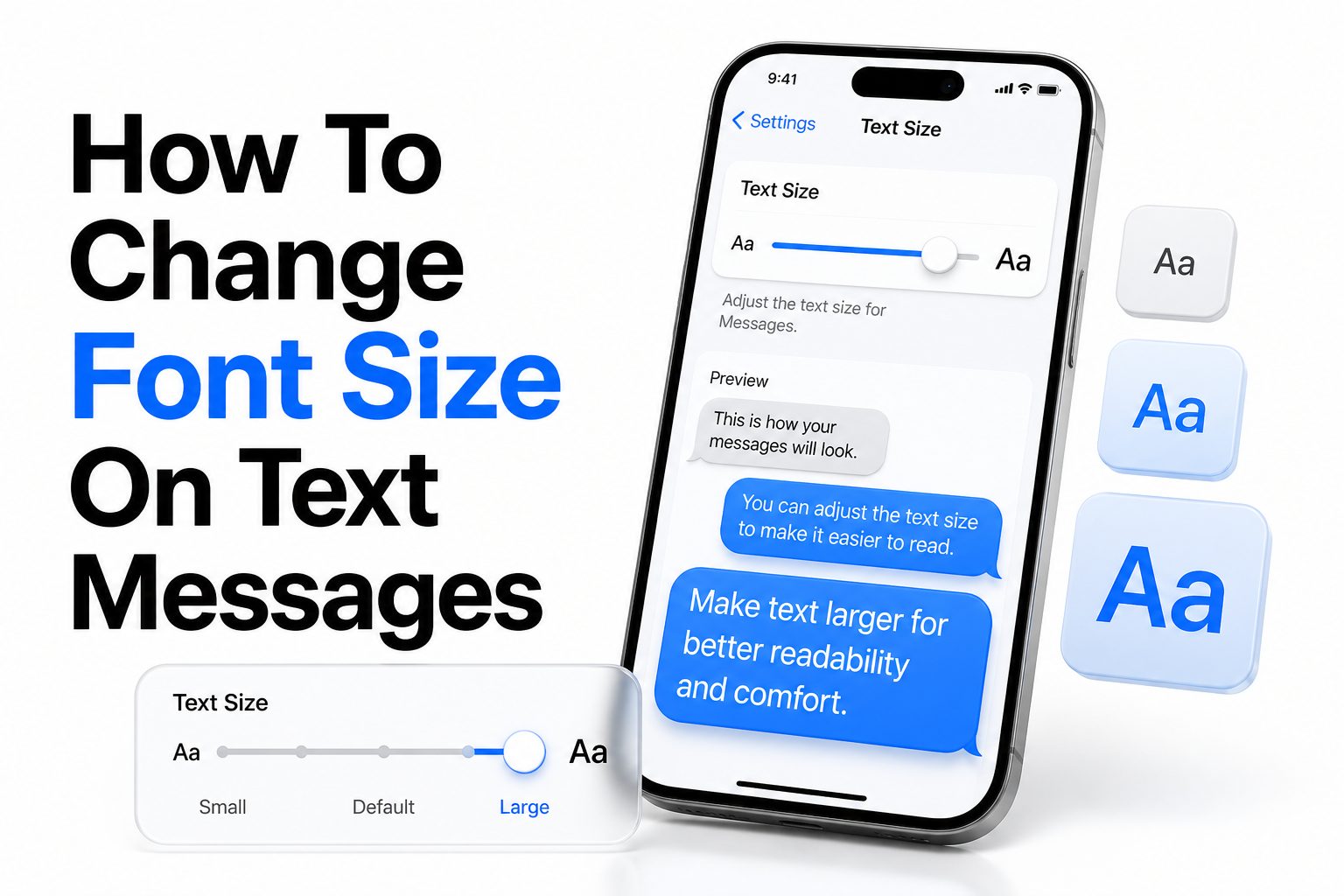
Text messages are one of the most-used features on any phone, but the reading experience is not always comfortable. If the text looks too small, it can strain your eyes. If it looks too large, messages may feel crowded and harder to scan quickly.
That is why many users search for how to change font size on text messages when they switch phones, update software, or simply want a better reading setup. The good news is that most devices let you adjust text size in a few steps, whether you use an iPhone, Samsung Galaxy, Pixel, or another Android phone.
Font size settings can make a major difference in daily comfort, especially if you read long conversations, use your phone outdoors, or share your device with family members who prefer larger text. Once you know where the settings live, you can fine-tune your messaging app for better clarity.
This article walks through the most practical ways to adjust message text size, explains what changes on different devices, and covers what to do when the setting does not seem to work. By the end, you will know exactly how to make text messages easier to read without affecting your phone in a frustrating way.
Why Message Font Size Matters
Small text can lead to eye strain, slower reading, and more mistakes when replying. This becomes more noticeable during long chats, at night, or when you are reading without glasses. A better font size improves speed, comfort, and confidence during everyday phone use.
Larger text is also helpful for accessibility. Many people need stronger visibility due to age, vision changes, or screen glare. Adjusting message text size is a simple change, but it can make your phone much easier to use without installing extra apps or changing devices.
How Font Size Settings Work on Phones
Most phones do not have a separate text-size setting only for messages. Instead, the Messages app usually follows your phone’s main display or font settings. When you change system text size, text messages, menus, and some other apps often change at the same time.
That is why users looking up how to change font size on text messages sometimes feel confused. They expect a message-only option, but many phones apply one broader setting across the system. Some brands, however, offer extra display controls inside their own messaging apps or accessibility menus.
Quick things to know before you change settings
- iPhones usually adjust message text through Display and Brightness or Accessibility settings.
- Android phones often control message text through Display, Font Size, or Screen Zoom.
- Samsung phones may offer extra scaling options that affect readability more strongly.
- Some messaging apps follow system settings exactly, while others only partially respond.
- Bold text and display zoom can improve readability even if font size changes feel minor.
How to Change Font Size on Text Messages on iPhone
On an iPhone, the most common way to increase message text is through the text size setting in Control Center or Accessibility. This affects supported apps and can make the Messages app easier to read without changing every visual element on the phone.
You can also go to Settings, then Display and Brightness, and use the Text Size option if available through Accessibility controls. For stronger changes, open Settings, tap Accessibility, then Display and Text Size. Larger Text lets you move the slider farther for better readability.
Using Display Zoom on iPhone
If text still feels too small after adjusting text size, Display Zoom can help. This setting changes the scale of the entire interface, including app layouts, labels, and message bubbles. It is useful for users who want everything on screen to appear larger.
To enable it, go to Settings, then Display and Brightness, and choose Display Zoom or View options depending on your iPhone model. This does not just enlarge letters. It changes spacing and interface elements too, which can make reading and tapping more comfortable.
How to Change Font Size on Text Messages on Android
On Android, the path usually starts in Settings under Display. Look for Font Size, Screen Zoom, or Display Size. Once you move the slider, your text messages should become larger or smaller depending on the direction you choose. The result varies by phone brand.
Google Pixel devices tend to keep the process simple with font size and display size controls in one area. Many other Android phones follow a similar pattern. If you use a third-party texting app, it may also include its own text display settings within the app menu.
Changing Text Size on Samsung Phones
Samsung phones offer more control than many other Android devices. In Settings, open Display, then Font Size and Style. Here, you can adjust the font scale and sometimes choose a different font face. This can improve message readability without changing your texting habits.
Samsung also includes Screen Zoom, which changes the size of interface elements beyond the text itself. If message text looks better but buttons still feel too small, combining these two settings usually creates a more balanced layout for regular texting and app navigation.
Best Android text settings to test
- Increase Font Size first, then check a message thread.
- Add Display Size or Screen Zoom if the change still feels too subtle.
- Open your Messages app after each adjustment to compare readability.
- Avoid setting text too large if it causes awkward line breaks in conversations.
- Test the keyboard too, since larger display settings can affect typing comfort.
When the Messages App Has Its Own Font Controls
Some messaging apps include their own display settings, especially apps outside the default phone software. If you use apps such as WhatsApp, Telegram, or certain manufacturer messaging tools, you may find chat size or text scaling options directly inside app settings.
This matters because users searching for how to change font size on text messages are not always using the built-in Messages app. If system settings do not produce the result you want, check the app’s appearance, chats, or accessibility section before assuming your phone cannot do it.
How Accessibility Settings Improve Message Readability
Accessibility settings do more than enlarge words. They can improve contrast, boldness, button size, and touch targets. If you often miss letters, struggle with pale text, or find bright backgrounds uncomfortable, accessibility features may solve the issue more effectively than font size alone.
On both iPhone and Android, options such as Bold Text, Larger Text, Magnification, and High Contrast Text can help. These features are especially useful for older users or anyone reading messages in difficult lighting. They often create a clearer result than simple font scaling by itself.
Accessibility features worth trying
- Bold text for stronger letter definition
- Increased contrast for clearer message bubbles
- Screen magnification for temporary close-up reading
- Larger display size for easier tapping
- Reduced transparency for cleaner text visibility
How Larger Text Affects Message Layout
Bigger text makes messages easier to read, but it also changes how conversations appear on screen. Fewer words fit on each line, and longer messages may stretch across more space. That means you may need to scroll more often during busy chats.
This does not mean larger text is a bad choice. It simply means you should aim for a setting that feels readable without making the conversation look cramped. A moderate adjustment often gives the best balance between comfort, layout, and speed while reading or replying.
Font Size Versus Screen Zoom
Font size changes the letters themselves, while screen zoom changes the overall scale of the interface. If you only increase font size, text becomes larger but some buttons, menus, or message bubbles may still feel small. Screen zoom can solve that broader visibility issue.
The trade-off is that screen zoom affects the full phone layout, not just your messages. That is why many users test font size first, then add zoom only if needed. If you want a cleaner phone setup, this side-by-side difference matters when picking the right approach.
Setting comparison
Option | What it changes | Best for
Font Size | Letters and app text | Users who mainly need easier reading
Display Size | Interface scale and text layout | Users who want larger visual elements
Bold Text | Letter thickness | Users who find thin text hard to read
Screen Zoom | Overall display proportions | Users who want bigger icons and buttons too
Common Problems When Font Size Will Not Change
Sometimes you adjust the setting, but your message text seems exactly the same. In many cases, the Messages app needs to be reopened, or the phone may need a quick restart. Some apps do not update instantly, especially after a system or accessibility change.
Another common issue is using a messaging app that ignores part of the system display settings. If that happens, open the app’s own settings and look for appearance controls. You can also check for a software update, since display bugs are sometimes fixed in later versions.
What to check when the setting is not working
- Restart the Messages app and reopen a conversation
- Reboot the phone after changing accessibility settings
- Check whether you are using the default messaging app or a third-party app
- Look for app-specific text or chat settings
- Install pending software updates
- Reset display settings only if the problem persists
Practical Tips for Better Texting Visibility
If your goal is comfortable reading, do not focus only on the font slider. Screen brightness, dark mode, contrast, and message bubble color also affect readability. A small text change paired with better contrast often works better than pushing font size to the maximum.
It also helps to test your settings in the places where you actually use your phone. Indoor lighting, sunlight, and nighttime use can make text look very different. A setup that feels fine in the afternoon may be frustrating in a dim room before bed.
Pairing Font Changes With Other Display Improvements
Dark mode can reduce glare for some people, while others read better with a bright background and darker text. There is no universal best option. The best message display is the one you can read quickly, comfortably, and without repeated squinting or zooming.
You may also want to review related phone settings for everyday readability. If you are already adjusting your screen for texting, it makes sense to check [Internal Link: how to change font size on Android phone] or [Internal Link: best accessibility settings for smartphones] for a more complete setup.
Tips for a better reading setup
- Keep brightness high enough to avoid squinting
- Use bold text if letters appear thin
- Try dark mode only if it improves comfort for your eyes
- Avoid extreme font sizes that break message layout
- Recheck settings after software updates
How to Choose the Best Font Size for Daily Use
The ideal setting is not always the largest one. A very large font can make text easier to see but harder to scan because too few words fit on each line. For most people, medium-large text offers the best mix of readability and efficiency.
A good method is to increase the text one step at a time, then read a few active conversations. If you can read comfortably without excessive scrolling, you are close to the right level. If replies feel awkward or the layout looks crowded, step back one setting.
When to Use Extra Support Beyond Font Settings
If changing font size still does not solve the issue, the problem may be broader than texting. Blurry vision, screen damage, poor brightness calibration, or severe glare can all interfere with readability. In those cases, larger text alone will not fully fix the experience.
A screen protector with too much reflection can also make reading messages harder than it should be. If you still struggle after adjusting font, zoom, and contrast, review your hardware setup and consider whether the issue is visual comfort rather than the Messages app itself.
Conclusion
Changing your message text size is one of the simplest ways to make your phone more comfortable to use every day. Whether you have an iPhone, Samsung Galaxy, Pixel, or another Android device, the key is knowing that message text usually follows your phone’s main display and accessibility settings. Once you adjust font size, display zoom, or contrast, reading and replying often becomes much easier.
The best result usually comes from a balanced setup rather than one extreme change. Test a moderate text increase, look at a few real conversations, and fine-tune the display until the screen feels natural. If the Messages app does not respond, check app-specific settings or restart the phone before assuming something is broken.
If you have been trying to figure out how to change font size on text messages, the process is usually quick once you know where to look. A few small adjustments can make texting clearer, faster, and more comfortable every single day.
Frequently Asked Questions
Can I change text message font size without changing other?
Usually, no. Most phones apply text size changes across the system, so messages, menus, and supported apps adjust together. Some third-party messaging apps offer their own chat display settings, which can give you more control without affecting everything else.
Why are my text messages still small after changing font?
Your messaging app may need to be restarted, or it may not fully follow system font settings. Check the app’s own display options, try a phone restart, and make sure your software is updated before testing again.
Does screen zoom help with text messages?
Yes, screen zoom can help by enlarging the whole interface, including message bubbles, icons, and buttons. It is useful when font size alone does not feel strong enough, especially for users who want easier tapping as well as easier reading.
Which is better for readability, bold text or larger text?
They solve different problems. Larger text helps when letters are too small, while bold text helps when letters look thin or faint. Many users get the best result by combining a moderate text increase with bold text.
Can I make text messages bigger on a Samsung phone?
Yes, Samsung phones usually let you change Font Size and Style as well as Screen Zoom in the Display settings. That gives you more flexibility than many phones, especially if you want a clearer and more comfortable texting layout.
0 Comments