
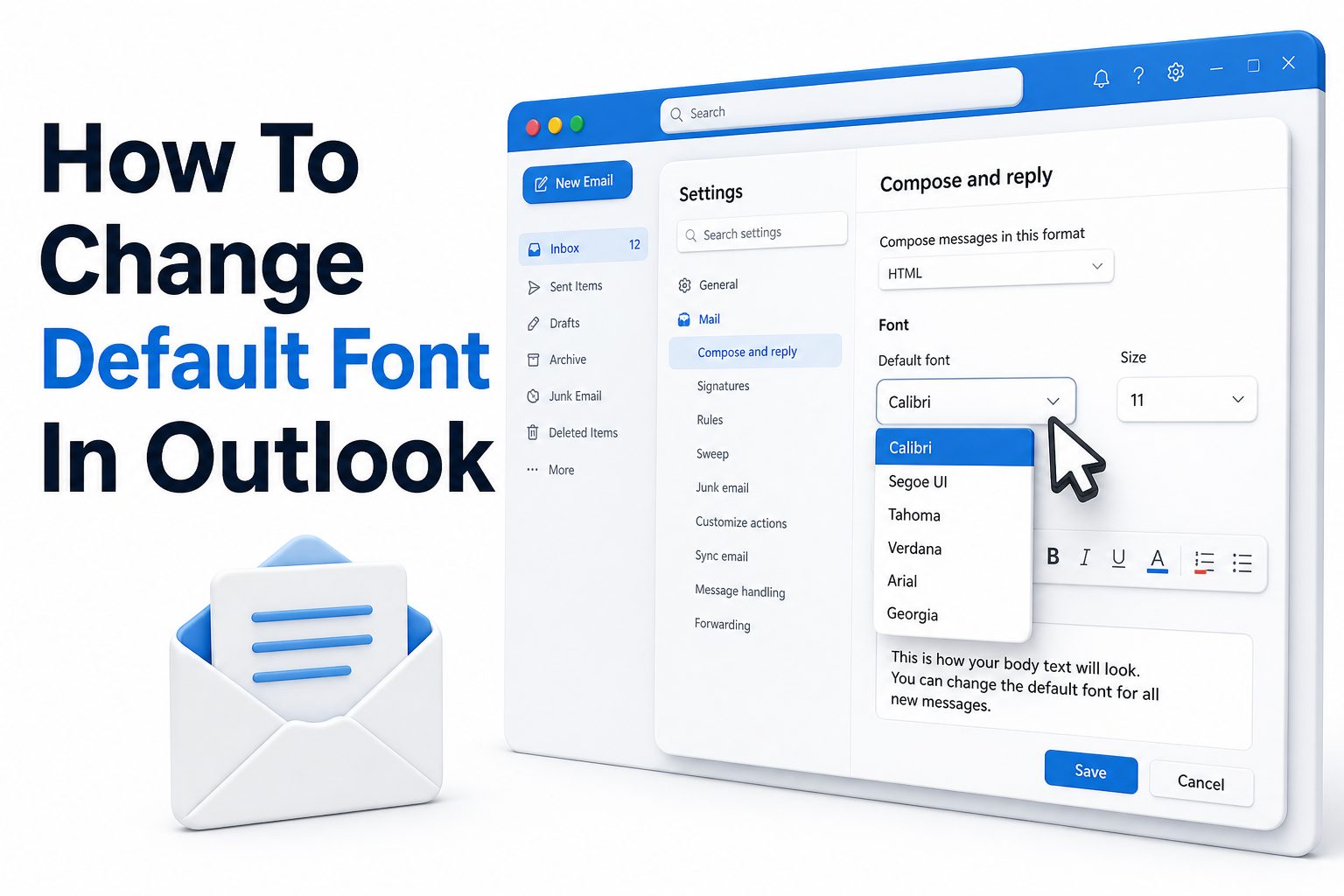
Most people write dozens of emails every week without thinking much about the font they use. Then one day, the default text starts to feel too small, too plain, or simply out of step with the way they want to communicate. That is when learning how to change default font in Outlook becomes more useful than it first appears.
Outlook gives you control over the font used in new messages, replies, and forwarded emails, but the exact steps depend on which version you use. Classic Outlook, new Outlook for Windows, Outlook on the web, and Outlook.com all place the setting in slightly different areas. Once you know where to look, the process is quick and easy.
This guide explains the steps clearly, along with practical advice on font size, readability, professional email formatting, and common issues that can stop your chosen font from displaying correctly.
Why Changing the Default Font in Outlook Matters
Your email font affects how your message is read before the recipient even focuses on the content. A clean, readable font can make everyday emails look more polished, especially when you send messages to clients, coworkers, managers, or customers.
Changing the default font also saves time. Instead of manually adjusting the font every time you write an email, Outlook applies your preferred style automatically. That small setting can make your emails feel more consistent and reduce repetitive formatting work during the day.
What to Know Before You Change Outlook Font Settings
Outlook does not use one single font setting for every email situation. In many versions, new messages have one font setting, while replies and forwards have another. That means you may need to update both areas if you want a consistent look.
The message format also matters. HTML emails support fonts, colors, bold text, links, images, and spacing. Plain text emails do not keep advanced formatting. If your emails are set to plain text, your default font choices may not appear as expected.
Quick Font Checklist Before You Start
- Choose a font that is easy to read on desktop and mobile screens.
- Use a practical size, usually 10, 11, or 12 points.
- Set fonts separately for new emails, replies, and forwards.
- Use HTML format if you want font styling to appear.
- Avoid unusual fonts that recipients may not have installed.
- Keep colors simple, especially for work email.
- Test your settings by sending yourself a sample message.
How to Change Default Font in New Outlook for Windows
In new Outlook for Windows, open Outlook and go to View. Select View settings, then choose Mail. From there, open Compose and reply, where Outlook keeps the message formatting options for emails you write.
Under Message format, choose your preferred font, size, and style. You can also adjust options such as bold, italic, and color if needed. Select Save when you are finished, then create a new email to confirm the change appears correctly.
How to Change Default Font in Classic Outlook for Windows
Classic Outlook keeps the default font controls inside the Options menu. Select File, then Options, then Mail. Under Compose messages, choose Stationery and Fonts to open the settings for message fonts.
On the Personal Stationery tab, select Font under New mail messages. Choose the font, style, size, and color you want. If you also want replies and forwards to match, select Font under Replying or forwarding messages and repeat the same setup.
Classic Outlook Font Settings Comparison
Setting Area | What It Controls | Best Use
New mail messages | Emails you create from scratch | Set your main professional email font
Replying or forwarding messages | Responses and forwarded emails | Keep replies consistent with new messages
Plain text messages | Text-only emails | Improve readability without rich formatting
Stationery and themes | Email background and design elements | Use carefully for branding or personal style
How to Change Default Font in Outlook on the Web
Outlook on the web places font settings in the Settings menu. Open Outlook in your browser, select Settings, then go to Mail. Choose Compose and reply to access your default message formatting options.
Under Message format, make sure your messages are set to HTML if you want font styling. Then choose your preferred font and size. Save the setting before closing the menu, and start a new message to check that Outlook applies the change.
How to Change Default Font in Outlook.com
Outlook.com uses a similar layout to Outlook on the web. Select Settings from the top-right area, then open Mail and Compose and reply. The default font options are usually listed under the message format section.
Choose the font and size that you want Outlook.com to use when you write new emails. If the font does not appear when composing, check whether formatting options are hidden or whether your message is set to plain text.
Best Font Choices for Professional Outlook Emails
For professional email, readability should matter more than personality. Fonts such as Arial, Calibri, Aptos, Verdana, Georgia, and Times New Roman are familiar, clean, and widely supported across different devices and email clients.
A font size between 10 and 12 points usually works well. If you write to clients or customers often, 11 or 12 points is safer for readability. Very small text can feel cramped, while oversized text may look informal or distracting.
Practical Email Font Tips
- Use Arial or Aptos for a clean modern look.
- Use Calibri if you prefer a familiar Microsoft Office style.
- Use Verdana when readability on screens is the top priority.
- Avoid script, decorative, or novelty fonts for business email.
- Use black or dark gray text for most professional messages.
- Keep bold and italics for emphasis, not entire messages.
- Send a test email to yourself before relying on the new style.
How to Set Different Fonts for New Emails and Replies
Classic Outlook lets you use different fonts for new emails and replies. This can be helpful if you want replies to stand out slightly in long email threads or if your workplace uses a specific style for responses.
To do this, open File, Options, Mail, then Stationery and Fonts. Choose one font under New mail messages and a separate font under Replying or forwarding messages. Keep both fonts readable so your message threads do not look messy.
Why Outlook Font Changes May Not Show for Recipients
Your selected font may not always appear exactly the same for every recipient. If the recipient’s device or email program does not have that font installed, their email app may substitute a similar available font.
Message format can also change what recipients see. If an email system converts HTML to plain text, font styling may disappear. This is common in some security-heavy organizations, automated systems, or email clients that strip formatting.
How HTML and Plain Text Affect Outlook Fonts
HTML format is best when you want Outlook to preserve fonts, colors, links, bullet points, and images. Most modern email messages use HTML because it supports the formatting people expect in business and personal communication.
Plain text is simpler and more universal, but it does not support custom font styling in the same way. If you need your default font to appear while composing and sending, HTML is usually the correct format to use.
HTML vs Plain Text for Outlook Font Settings
Format | Font Support | Best For
HTML | Supports font family, size, color, bold, italics, and links | Professional emails, newsletters, formatted messages
Plain text | Limited formatting support | Simple messages, compatibility, security-focused communication
Rich Text | Limited practical use outside some Microsoft environments | Internal legacy workflows only
How to Change Font Size When Reading Emails in Outlook
Changing the default compose font does not always change the font size of emails you receive. Reading settings are usually controlled separately through zoom, view settings, or message list display options.
In new Outlook, you can use View and Zoom to enlarge messages in the reading pane. In classic Outlook, the zoom slider near the bottom-right area of the reading pane can make messages easier to read without changing outgoing email formatting.
How to Change Font Size in the Outlook Message List
The message list is the inbox area where you see senders, subjects, and preview text. Changing this font is different from changing the default font for messages you send.
In new Outlook, go to View, then View settings, then Mail and Layout. Look for text size and spacing options. In classic Outlook, view settings may include row font and column font controls, depending on your current inbox view.
Common Problems When Changing Outlook Default Font
One common issue is changing the font for new messages but forgetting replies and forwards. As a result, new emails look correct, but responses still use the previous font. Check both settings if your emails look inconsistent.
Another issue is using a font that is not widely supported. It may look perfect on your computer but appear differently for someone else. For dependable formatting, choose common fonts that work across Windows, Mac, webmail, and mobile apps.
Troubleshooting Checklist
- Confirm whether you use new Outlook, classic Outlook, or Outlook on the web.
- Check both new message and reply or forward font settings.
- Make sure messages are composed in HTML format.
- Restart Outlook if the setting does not appear immediately.
- Test with a new email instead of an old draft.
- Avoid fonts that are not installed on common devices.
- Check whether your organization controls email formatting policies.
How to Restore the Default Outlook Font
If you change your mind, Outlook lets you return to the standard font settings. In classic Outlook, go back to File, Options, Mail, Stationery and Fonts, then adjust the font back to the original default values.
Microsoft’s traditional classic Outlook default has often used Calibri at 11 points, while newer Microsoft interfaces may use newer default fonts. If you are unsure, choosing +Body, regular style, automatic color, and 11 points is usually a reliable reset.
How to Choose the Right Font Size for Outlook Emails
Font size should match the type of email you send. For standard business messages, 11 points is a strong middle ground. It is readable without looking oversized and works well across most laptop and desktop screens.
If many recipients read your emails on phones, 12 points may be more comfortable. Avoid going below 10 points unless your workplace specifically requires it. Small text may save space, but it can reduce clarity and create unnecessary friction.
How Default Fonts Affect Email Branding
For businesses, email typography is part of brand consistency. A sales team, support team, or executive office that uses consistent email formatting can look more organized and professional across every customer interaction.
Still, email is not a brochure. Brand fonts may not always display correctly in inboxes, especially if they are custom or web-based fonts. For reliable results, pair brand guidelines with practical system fonts that recipients can actually see.
Email Branding Font Guidelines
- Pick one standard font for everyday business email.
- Keep font color close to black for readability.
- Match email signatures with the body font where possible.
- Avoid using multiple font families in one email.
- Use brand colors sparingly for links, signatures, or headings.
- Test formatting across Outlook, Gmail, Apple Mail, and mobile apps.
- Keep accessibility in mind for older readers and small screens.
How to Change Fonts in a Single Outlook Email
Sometimes you may not want to change the default font for every message. For one-time changes, open a new email and use the formatting toolbar in the message window to select a different font, size, color, or style.
This is useful for special announcements, internal updates, or messages that need a slightly different structure. However, changing fonts manually in one email will not update your default Outlook settings for future messages.
How Outlook Fonts Work with Email Signatures
Your email signature may have its own font formatting separate from your message body. That means your default email font can change while your signature keeps an older style, creating a mismatched look.
To fix this, edit your signature after changing your default font. Match the signature font, size, and color to your message body or choose a slightly smaller size for contact details. For more help, see [Internal Link: Outlook email signature setup].
Accessibility Tips for Outlook Email Fonts
Accessible emails are easier for everyone to read, not only people with vision difficulties. Use a clear font, enough contrast, and sensible spacing. Dark text on a white or very light background remains the safest choice for most email communication.
Avoid using color alone to show importance. If something matters, write it clearly in the sentence. Bold can help highlight a deadline or action item, but too much bold text makes the whole message harder to scan.
Mistakes to Avoid When Setting Outlook Fonts
Do not choose a font because it looks interesting in the settings window. Email fonts need to survive real inbox conditions, including mobile screens, dark mode, different operating systems, and corporate email filters.
Avoid mixing too many sizes and colors in regular emails. A consistent font makes your message look intentional. If you manage business communication, you may also want to review [Internal Link: professional email formatting tips] for stronger day-to-day standards.
Final Font Setup Recommendations
- Best general font: Arial, Aptos, Calibri, or Verdana.
- Best business font size: 11 or 12 points.
- Best color: black or dark gray.
- Best format: HTML for styled emails.
- Best practice: set new emails, replies, and forwards together.
- Best test: send an email to yourself and view it on desktop and mobile.
Conclusion
Changing Outlook’s default font is a small adjustment that can make your emails easier to read, more consistent, and better suited to your personal or professional style. The key is knowing which version of Outlook you use, because new Outlook, classic Outlook, Outlook on the web, and Outlook.com place the setting in different menus.
For most users, the best choice is a simple, widely supported font in 11 or 12 points, with HTML enabled for message formatting. If you send business emails, keep the style clean and consistent across new messages, replies, forwards, and signatures. Also remember that recipients may see a substituted font if your chosen one is not installed on their device.
Once you know how to change default font in Outlook, the setup only takes a few minutes and saves you from fixing the same formatting every time you write an email.
FAQ
Can I set different fonts for replies and new emails?
Yes. Classic Outlook lets you choose one font for new mail messages and another for replying or forwarding messages. This is useful if you want replies to appear slightly different in long email conversations.
Why does my Outlook font keep changing?
This can happen if you are replying to plain text emails, using a draft with old formatting, or working under company-managed settings. Check your compose format and update both new message and reply font settings.
What is the best font for Outlook email?
Arial, Aptos, Calibri, and Verdana are reliable choices for Outlook emails. They are readable, professional, and widely supported, which helps your messages display consistently across different devices and email apps.
Can recipients see my chosen Outlook font?
Usually, yes, if the email is sent in HTML format and the recipient has that font available. If not, their email app may replace it with a similar font installed on their device.
Does changing Outlook font affect old emails?
No. Changing the default font affects new messages you compose after the setting is saved. Existing sent emails, received messages, and older drafts usually keep their original formatting unless you edit them manually.
0 Comments